Every error the widget captures lands on the project's Errors page. Repeats of one bug are grouped into a single row with a count, so a crash that hit 400 visitors is one thing to look at, not 400. From there you read it, turn it into a task, or ignore it.
If errors aren't arriving yet, start with Capturing JavaScript errors automatically.
The Errors page
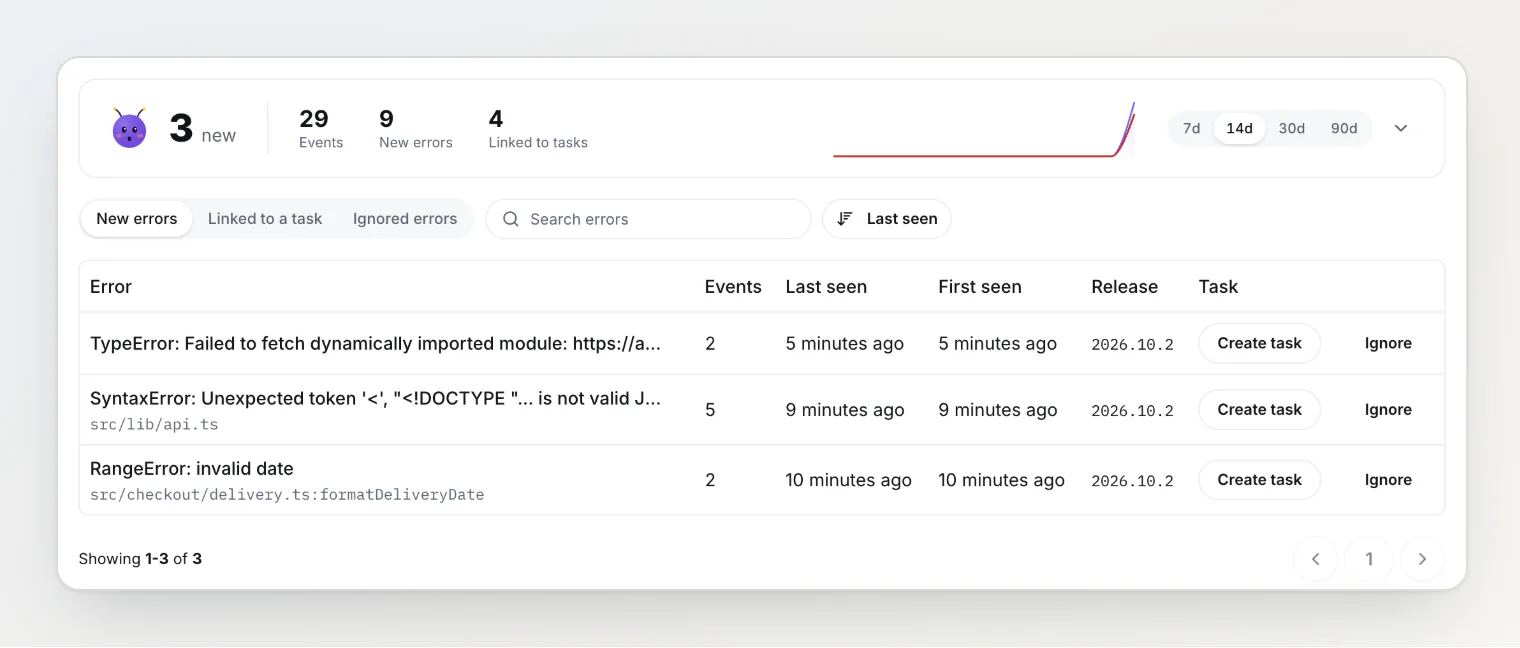
The chart at the top shows events and new errors per day over the last 7, 14, 30 or 90 days, with how many errors are linked to tasks. Below it are three tabs:
New errors: no task yet, not ignored. This is your inbox.
Linked to a task: errors someone already put on the board.
Ignored errors: errors someone decided not to act on.
Each row shows the error, the place in your code it came from, its event count, when it was first and last seen, and the release it was last seen in. Search by title, and sort by Last seen or by Events to find the error that hits the most people. Create task and Ignore work right from the row.
The Errors page is separate from the board. Errors reach the board only when someone turns one into a task, so a noisy week doesn't bury the reports your users wrote.
How errors are grouped
Two events belong to the same error when they have the same type, the same message once numbers, URLs and IDs are taken out, and the same top frames of your own code. Frames are compared by file and function, not by line, so an edit elsewhere in the file doesn't split an error in two. With source maps uploaded, frames are compared in your original code, which stays the same across builds.
Browsers don't write stack traces the same way, so now and then one bug arrives as two errors, one from Chrome and one from Safari. Link both to the same task and they move together.
The error page
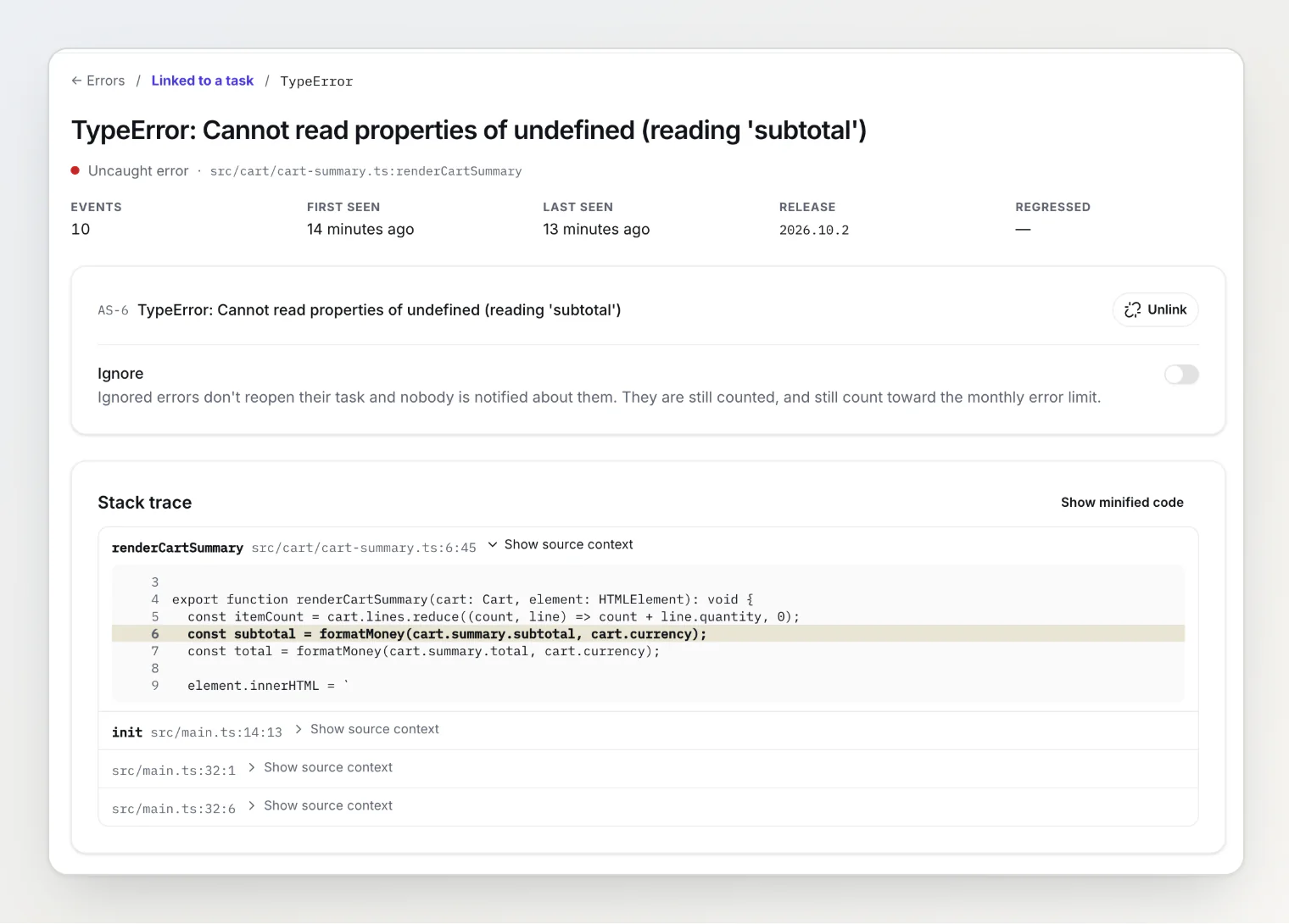
The header says how the error was caught: Uncaught error, Unhandled promise rejection, or Reported by the app for errors your code sent with captureException. Next to it are the event count, first and last seen, the last release, and Regressed, the last time it came back after its task was resolved.
Stack trace. Frames from your code come first. Frames from libraries are folded under Library frames. Show source context opens the lines around a frame when a source map provided them, and Show minified code shows the stack exactly as the browser reported it.
Stored events. BugDump counts every event and keeps the newest 20 of each error in full. Pick one to see its console, network requests, clicks and page details, as they were in the minute before the error. When your app attached data with setContext() or captureException(), the Context tab shows it. An error caught by BugdumpErrorBoundary from @bugdump/react carries React's component stack there.
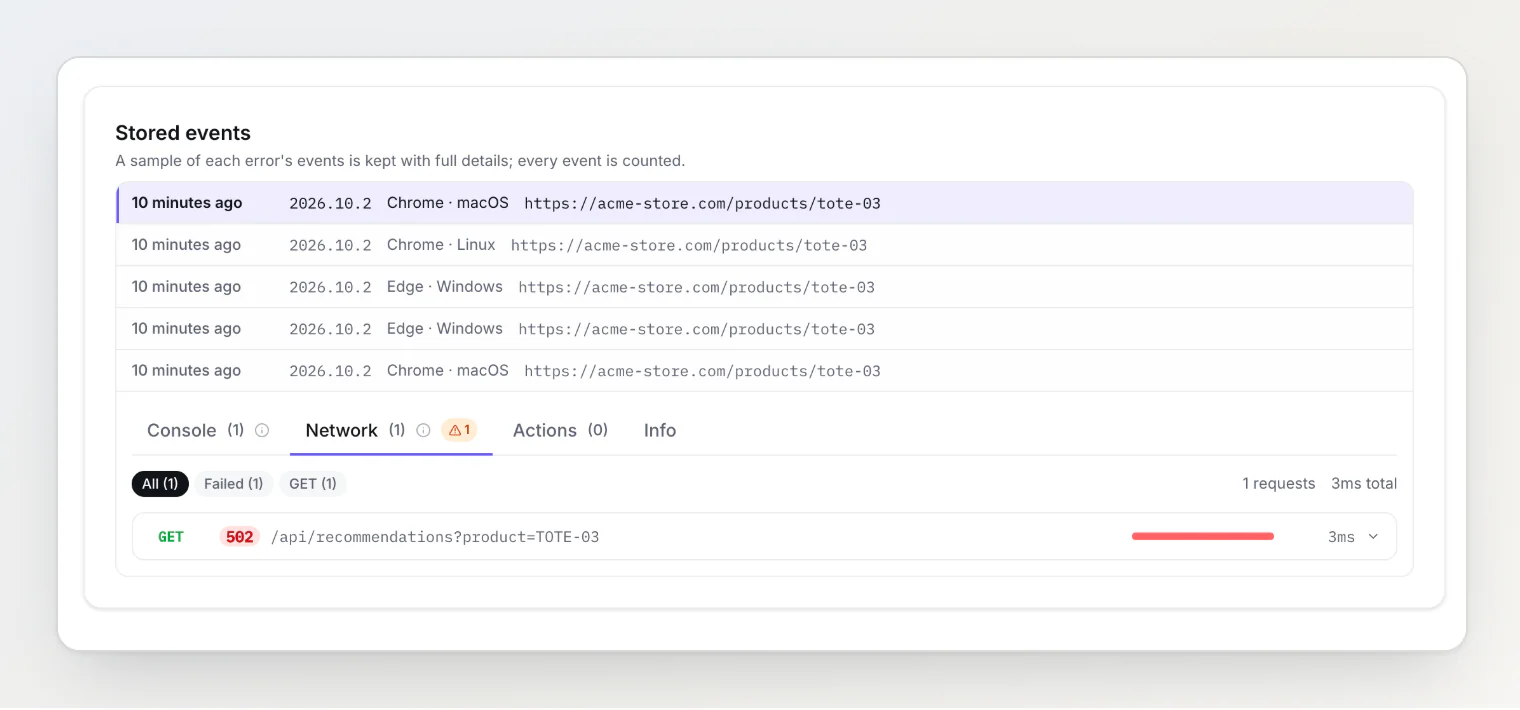
Here the stack alone says only that a response wasn't valid JSON. The Network tab shows why: the recommendations endpoint returned a 502 error page instead of JSON. Stored events are kept as long as reports are on your plan: 30 days on Free, 90 on Pro, 365 on Ultra.
Turning an error into a task
Create task puts a new card on the board, named after the error and linked to it.
Link to an existing task attaches the error to a card someone already filed. Search by title or task number, such as
AS-1.Unlink detaches it again. The error goes back to New errors.
Any member of the project can do all three. A task shows its linked errors under Errors, with the stack trace and stored events, and the search on the task page looks through them too.
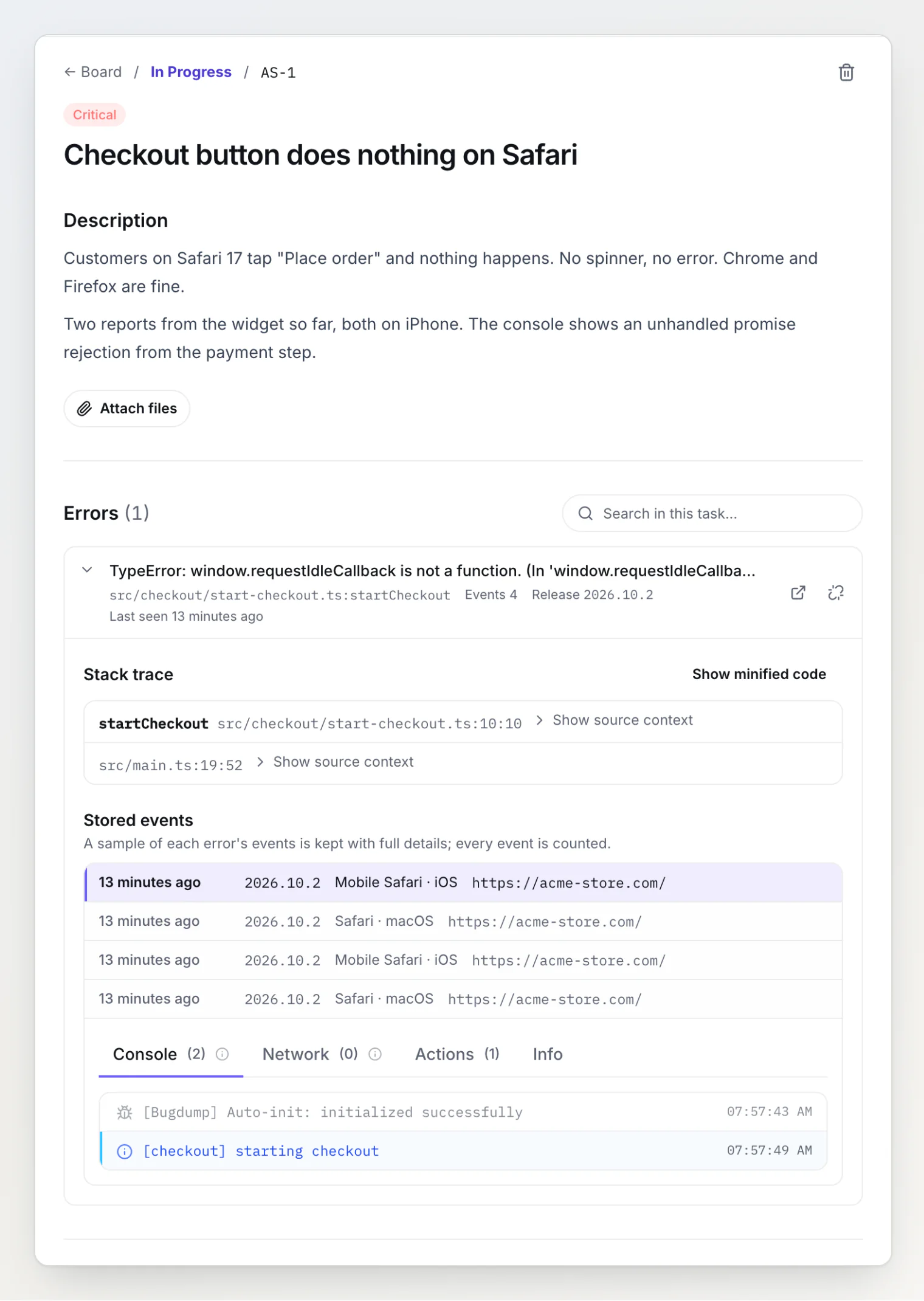
This is where linking pays off. AS-1 was filed from a customer's description, "the checkout button does nothing on Safari". The captured error attached to it shows the cause: Safari has no window.requestIdleCallback.
When a fixed error comes back
Resolve the task when the fix ships. If the error then arrives from a release it hasn't been seen in before, the task reopens by itself, and the error page records when it regressed. An old tab still running yesterday's build doesn't reopen anything, because that release has already been seen.
Without a release, BugDump can't tell a new build from an old one, so it reopens the task only if it was resolved more than 24 hours ago. Setting a release makes regressions much more reliable (see Capturing JavaScript errors automatically).
Ignoring an error
Turn on Ignore for an error you've decided not to fix, such as noise from an ad blocker. An ignored error moves to Ignored errors, never reopens its task, and notifies nobody. Turn the switch off to bring it back.
The widget still sends ignored errors, so they still count toward the monthly error limit. To stop one at the source, add it to ignoreErrors in the widget's settings.
Who hears about errors
Every member is told about a new error, and about an error that comes back and reopens its task, in the app and by email, on every plan. Error emails go out at most once every five minutes per person.
Each member has a New errors switch on the Team page, on by default, and a New reports switch next to it for new widget reports. Members change their own; owners and admins can change anyone's. The project owner is also warned in the app and by email at 80 %, 90 % and 100 % of the monthly error limit.
Cleanup
An error with no task that nobody has seen for 90 days is deleted. Errors linked to a task stay as long as the task does.
From your AI assistant
BugDump's MCP server has two tools for errors: list_errors lists them by tab, and get_error returns one with its stack trace, resolved through your source maps, and its newest event. get_task lists the errors linked to a task. See Using BugDump with Claude Code (MCP).