Every task has five built-in fields: status, assignee, priority, labels and due date. On Pro and Ultra you can add your own on top — a "Customer tier" select, an "Affected version" text field, a "Regression?" checkbox, whichever fields your triage actually needs.
Creating a property
Open Properties from the project sidebar and click New property. Give it a name, choose a type, and save.
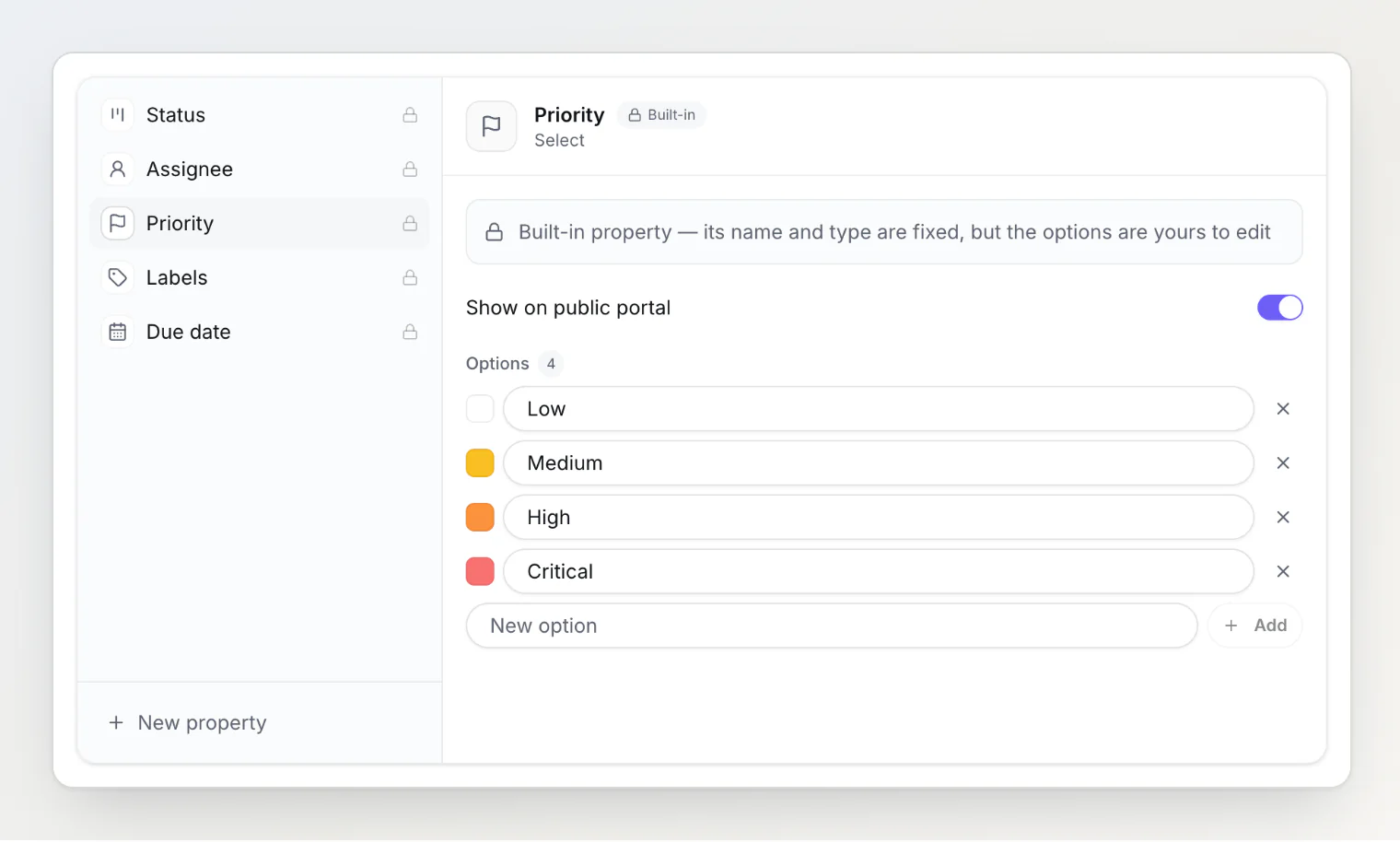
The page lists the five built-ins first, marked with a lock, then your own properties below. Drag your properties to reorder them; that order is the order they appear on every task.
The eight types
Type | Holds | Good for |
|---|---|---|
Text | A single line | Affected version, customer name |
Number | A numeric value | Sessions affected, revenue at risk |
Date | A calendar date | Target release, reported-to-customer date |
Checkbox | Yes or no | Regression?, Needs QA? |
URL | A web link | Linked PR, support ticket |
Select | One of a list you define | Customer tier, severity of your own |
Multi-select | Any number from a list | Affected platforms, teams involved |
Member | One or more project members | Reviewer, QA owner |
A property's type cannot be changed after it is created, because the values already stored have that type's shape. If you picked wrong, create a new property and delete the old one.
Select and multi-select properties get an options editor, the same one the priority list uses: add, rename, recolour and remove options, then save the whole list at once. Option labels are case-insensitively unique within a property.
Member properties get an Allow multiple values toggle. Turning it off when tasks already hold several members is refused, so clear those tasks first.
A member property also decides who hears about a task. Everyone named in one is notified of the task's comments, status changes and property changes, just like its assignee, so naming someone as Reviewer is how you bring them into a task. See Task notifications: who hears about a change.
Setting values on a task
Open a task and look under Properties in the right-hand rail. The card only appears once the project has at least one custom property.
Every change to a value is recorded in the task's Activity tab with the old and the new value, the same way a change to a built-in field is, and notifies the people involved in the task. Saving a value that is already there records nothing and notifies nobody.
Filtering the board by a property
The board's Properties button lists every custom property with a control that suits its type — checkboxes for select and multi-select, a contains box for text and URL, a range for numbers and dates, a "Has a value" switch, and the project roster for member properties.
Filters combine with AND: pick Customer tier Enterprise and Regression checked, and you get the tasks that are both. You can have up to ten property filters active at once, and they travel in the URL, so a filtered board is a link you can share.
Deleting a property
Deleting a property removes it from every task along with the values stored in it. Tasks themselves are untouched. This cannot be undone, so it asks for confirmation.
Deleting a single option from a select does not ask: the tasks that held it keep everything else and simply lose that one value.
Limits
Plan | Custom properties per project | Options per property |
|---|---|---|
Free | 0 | 50 |
Pro | 50 | 200 |
Ultra | 200 | 1000 |
The five built-in properties do not count against the limit, so a Free project still gets status, assignee, priority, labels and due date — and can still edit its priority list. Options per property applies to labels and board columns too, since those are options as well.
Properties and the public portal
Custom properties are dashboard-only: they are not shown on the public portal. The built-in properties are the ones you can publish, with the Show on public portal switch on each one. Status and priority are published by default; assignee can never be.
Reading and writing properties from an AI agent
The MCP server exposes them too:
get_current_projectreturns every property with its id, name, type and — for select-like ones — its option ids. Properties whosesystemisnullare the ones you created.list_taskstakespropertyFilters, so an agent can ask for "open tasks where Customer tier is Enterprise" in one call. It works on built-in properties as well, which is how an agent filters by priority.set_task_propertysets or clears one custom property value, formatted to the property's type.get_task_historylists a task's property changes with the property's name, the old value and the new one.
The built-in fields keep their own tools: set_priority, set_task_labels, set_task_due_date, assign_task and move_task.