The public portal is a public page of your project's tasks: anyone can open a task, read the reports behind it and upvote it. It lives at https://your-project.bugdump.com, where your-project is the project's slug, and it is off until you turn it on. It is always a subdomain of bugdump.com; there is no custom domain option.
Turn it on
Open the project and choose Project under Settings in the sidebar.
In Public Portal, switch on Enable portal.
The portal's address appears under the switch. Copy it, or open it with the button next to it.
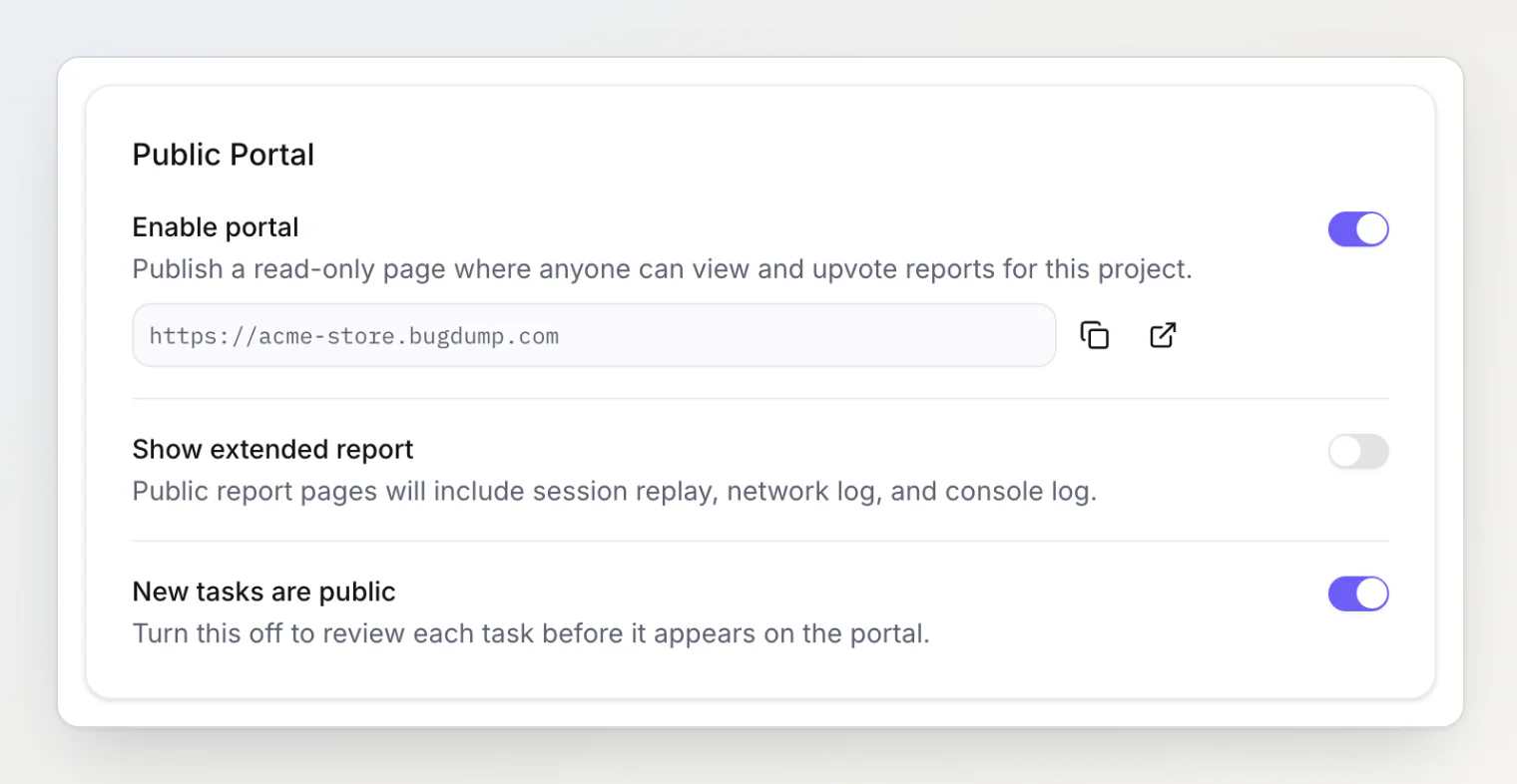
Only the project's owner and admins can change these settings. With the portal on, the widget adds a View reports link to its footer that opens the portal, with no change to your code.
Portals used to live at bugdump.com/p/your-project. Links to that address still work: they redirect to the same page on the subdomain.
The slug is the address
The Slug field under General settings, on the same page, sets the portal's address. Because it becomes a subdomain, a slug has to:
be 3 to 63 characters long;
use only lowercase letters, numbers and single hyphens, with no hyphen at the start or end;
not be a name BugDump keeps for itself. Most are obvious (
www,api,admin,docs), but the list also has names you might pick for a project, such asdemo,test,shopandstore, and anything starting withbugdump-.
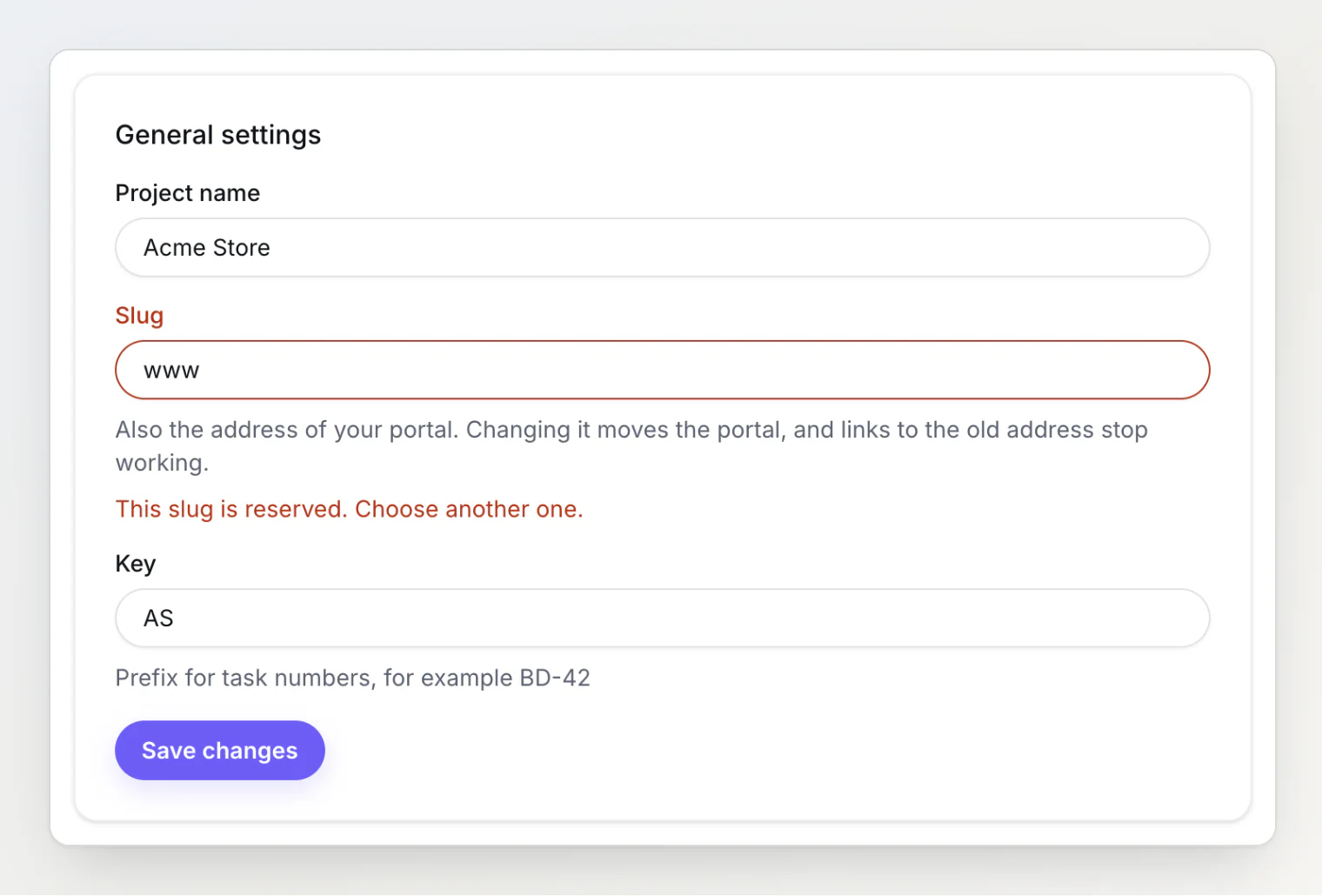
Changing the slug moves the portal to the new address straight away. Links to the old address stop working, and nothing redirects from it, so settle on a slug before you share the portal.
What visitors see
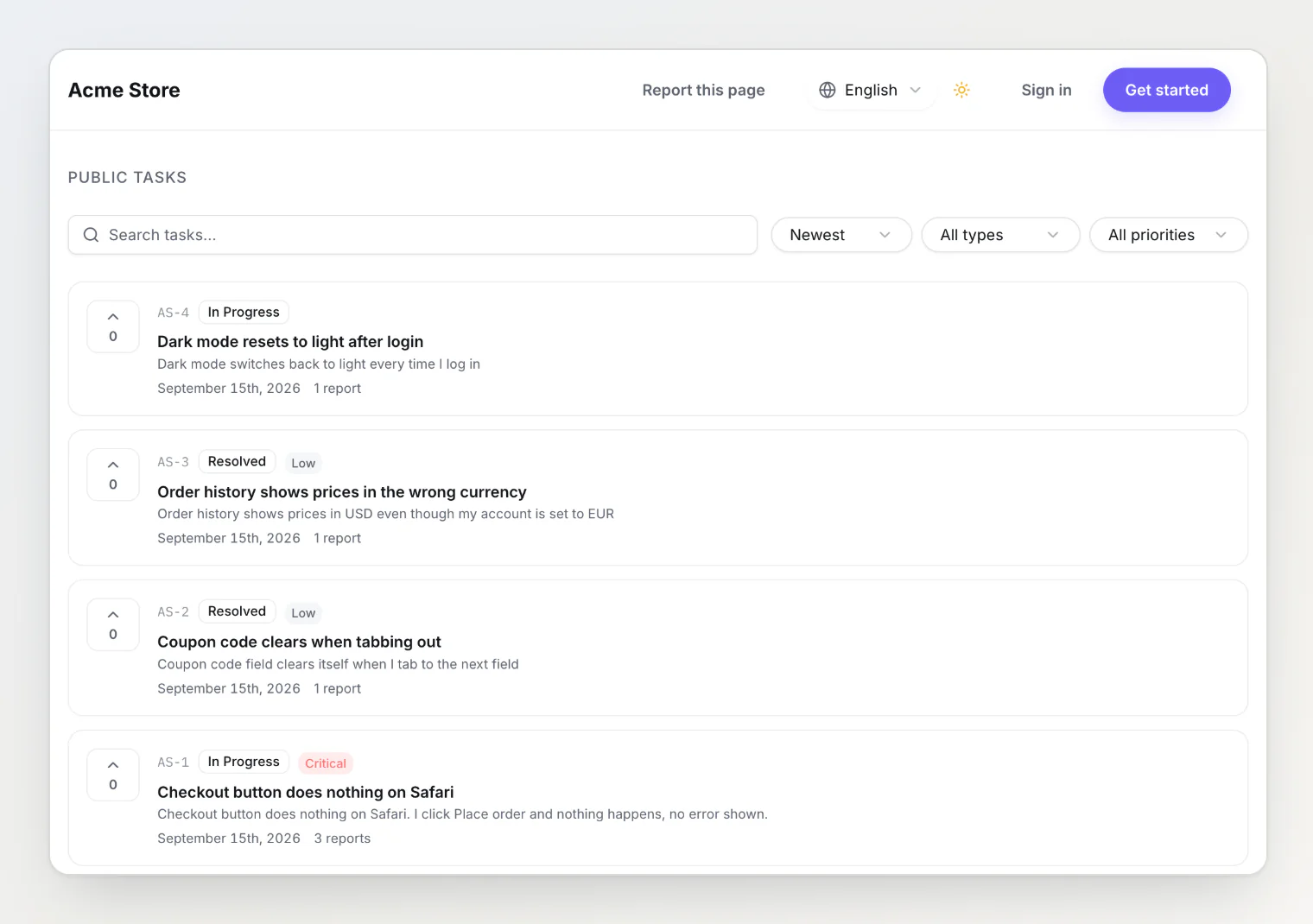
The portal's front page lists the public tasks, newest first. Each card shows the task's key, its column and priority, when it was created, how many reports it has and its upvotes. Visitors can search task descriptions, sort by Newest or Top, and filter by Active tasks or Closed, by priority and by label; each filter appears only while its field is public.
Every task has its own page, such as https://your-project.bugdump.com/tasks/1 (/tasks/AS-1 opens it too). It shows the title and description, with the status, priority, upvotes and creation date in a column beside them, and the task's reports under the description, each with the reporter's description, their name and the screenshots or files they attached.
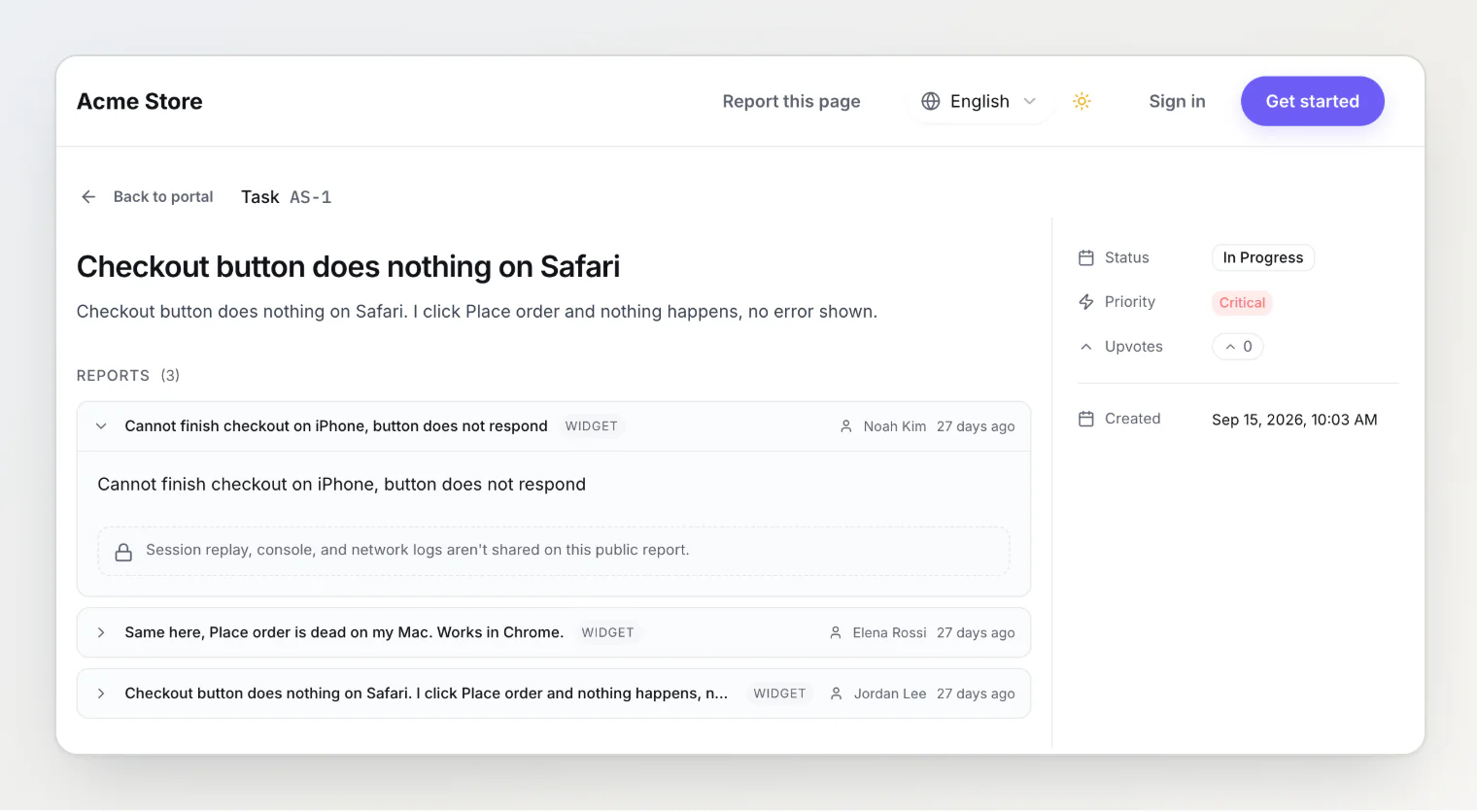
Visitors upvote without an account; the portal remembers their vote in the browser. Report this page sends a page to BugDump's moderators, for content that should not be public.
The portal never shows comments, the assignee, your own custom properties or hidden tasks, and search engines do not index it.
Choose which fields are public
Status and priority are public from the start; labels and the due date are not. To change that, open Properties under Settings, choose Status, Priority, Labels or Due date, and use Show on public portal. The same switch is in the column settings on the board and in the labels dialog.
Choose which tasks are public
New tasks are public, in the same Public Portal section, is on by default, so a new task goes on the portal as soon as it is created. The exception is a task made from a captured JavaScript error, which always starts hidden. Turn the switch off to review tasks first: new ones then stay hidden until you make them public.
To show or hide one task, use the Public on portal switch in its side panel or on its page. While the portal is on, a hidden task's card on the board has an eye-off icon with the tooltip Hidden from the portal.
How much of each report is public
Show extended report is off by default. With it off, a public report has the description, the reporter's name and their screenshots and files. Its session replay, screen recording, voice note, console log, network log and the steps the reporter took stay private.
With it on, report pages also show the console log, the network log (method, URL, status and timing, never headers or bodies), the steps the reporter took (clicks, typing and page changes), the session replay, recordings and voice notes, and an Info tab with the page address, browser, operating system and window size.
Replays and recordings show the pages the reporter had open, with any names or account details on them (typed input is masked). Console messages and request URLs can name internal endpoints, and error messages can describe how your code works. Leave it off unless the people who read your portal benefit from that detail, as they do on an open-source project or a developer tool.
Write for an outside reader
Task titles and descriptions are public, so write them for the people reading the portal. "Checkout fails for EU customers" is fine; "fix Dave's broken migration again" is not.
Column names are public too, because a task's column is its status on the portal. Investigating reads better to a customer than Backlog (triage-2). Closed columns show too: a task you decided against sits on the portal under that column's name, so give it one you would say to the reporter, such as Not planned.
Turning it off
Switch off Enable portal. The portal's address then shows "Portal not available", and the widget stops showing its View reports link on pages loaded a minute later; a page already open keeps the link until it reloads.
Continue reading
Working with tasks and the board — how tasks move between open and closed columns, which is what the portal shows.
Feature toggles and handling sensitive data — keep tokens and personal data out of reports before anything can reach a public page.
Custom properties: adding your own fields to tasks — add fields of your own; they stay with your team and never appear on the portal.