When a reporter turns the microphone on while recording their screen with the widget, BugDump writes down what they said. The report shows the speech as timed lines and as a summary of one to three sentences in the language they spoke.
What gets transcribed
A screen recording made with the widget, when the reporter turned the microphone on during it.
These are not transcribed:
a recording made with the microphone off the whole time: the widget marks it so, nothing goes to OpenAI, no minutes are used, and the Transcript tab says No speech was detected.;
a session replay or a DOM recording, which has no sound;
video and audio files attached as files, in the widget or on a task or a comment.
A recording from an SDK older than 0.0.49 doesn't say whether the microphone was on, so it's transcribed whenever it has sound and uses minutes even when nobody spoke.
Where to read it
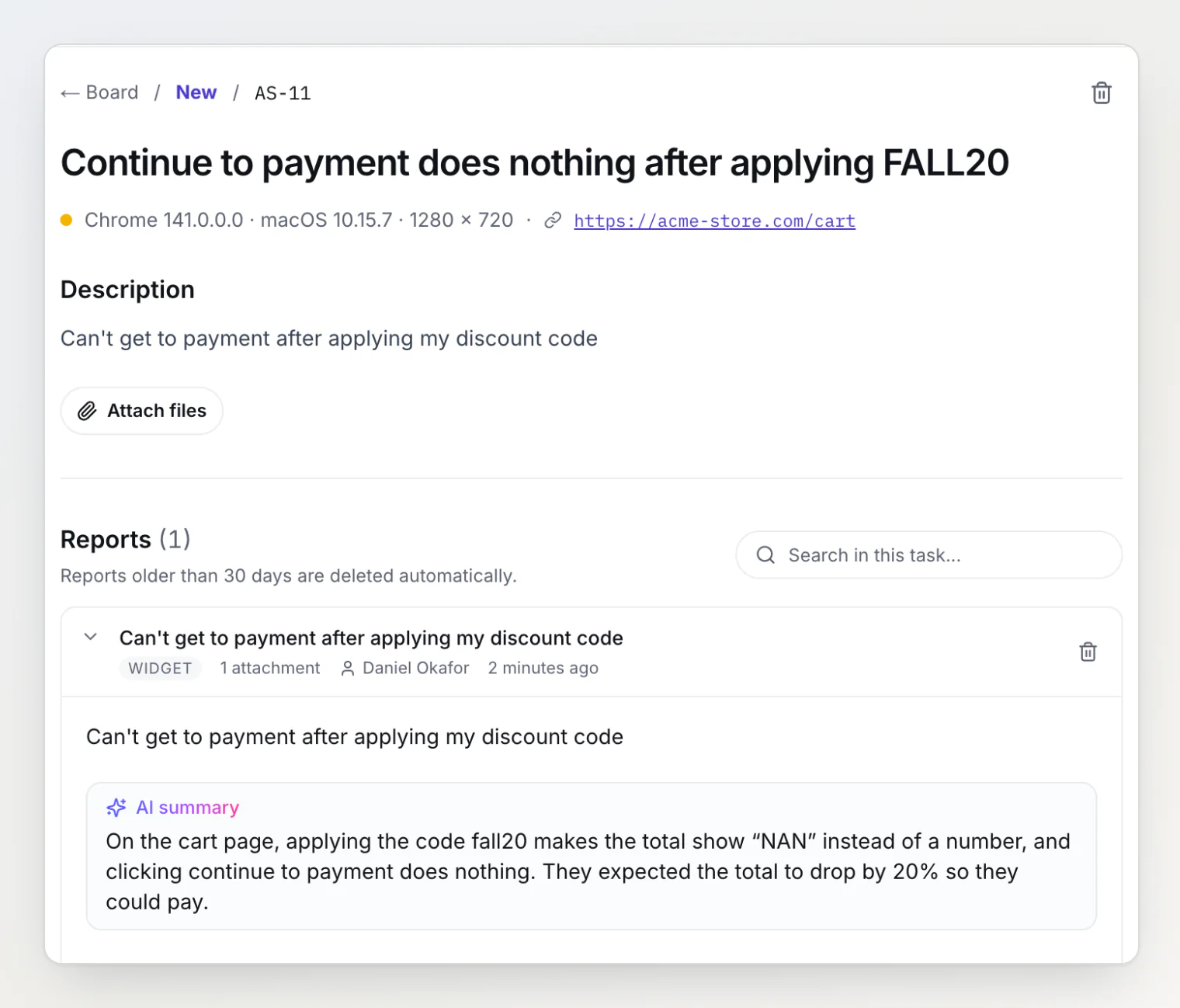
In the report details, the AI summary sits under the reporter's description, so you can read what they said without opening the video.
In the player, open the recording with Play replay. The Transcript tab comes first and opens on its own when there is speech or it is still being transcribed: the summary on top, then every line with the second it starts at. Click a line to jump the video there. The line at the playhead is highlighted, and the list scrolls with it during playback.
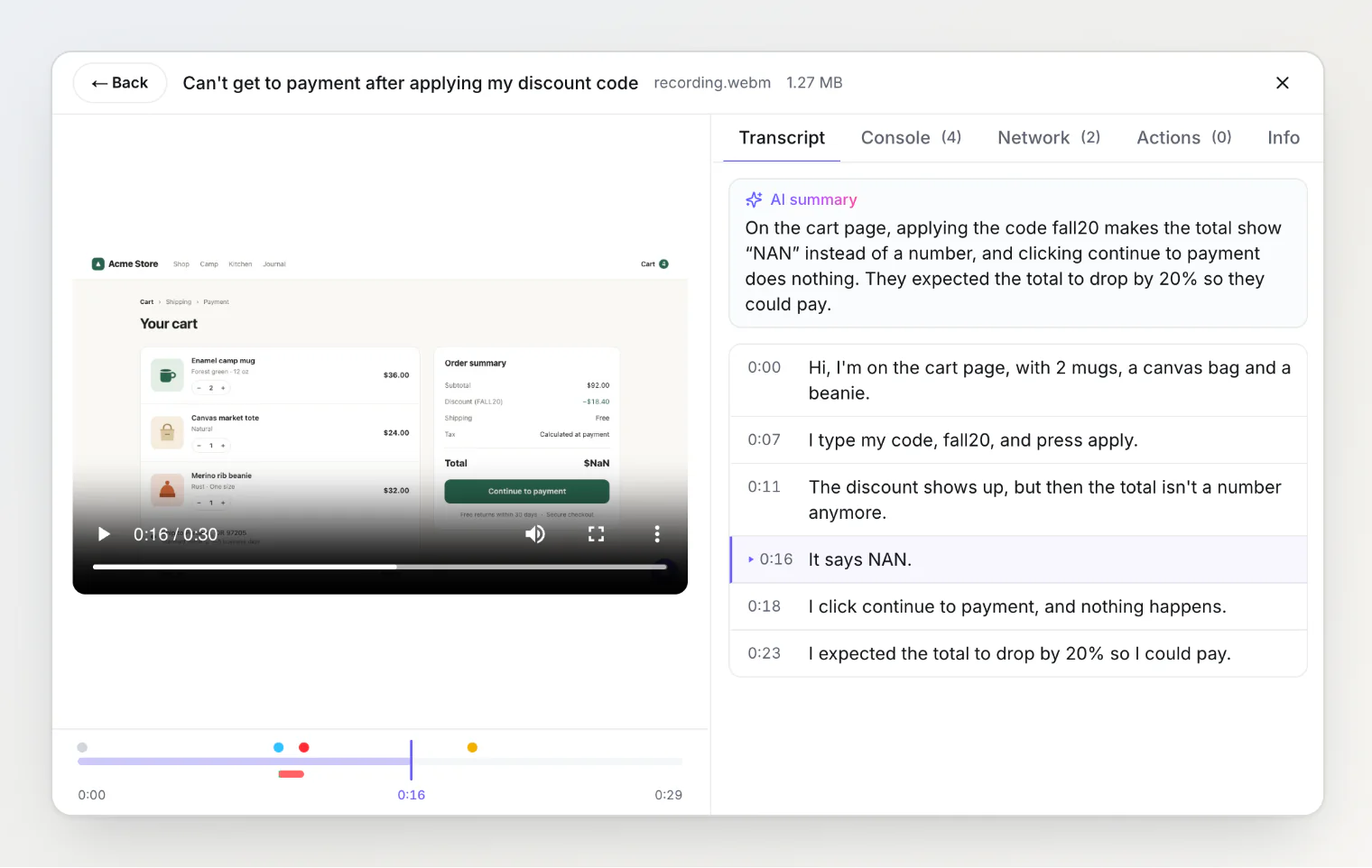
If the reporter speaks Russian, the summary is in Russian too, whatever language your team works in.
What the Transcript tab can say
The tab says | What it means |
|---|---|
Transcribing… | The recording is in the queue. The tab updates on its own. |
No speech was detected. | Nobody said anything BugDump could keep: silence, speech too quiet or unclear to transcribe with confidence, or the microphone was off. |
This recording isn't transcribed. | Transcription was off for the project when the report came in, or the recording is older than the feature. Press Transcribe. |
Transcription failed. | Press Try again. |
Not transcribed: the transcription minutes on this project owner's plan are used up for this month. | Press Try again after the minutes reset or after an upgrade. |
No summary above the lines means the reporter didn't describe a problem, as in "testing, one, two, three", or the summary step failed; the transcript is saved either way.
Turning it off for a project
Transcription is on by default in every project. Only the project's owner and admins see the switch. To stop it for one project:
In the sidebar, under Settings, open Project.
Under Transcription, switch off Transcribe speech in screen recordings. The change saves at once.
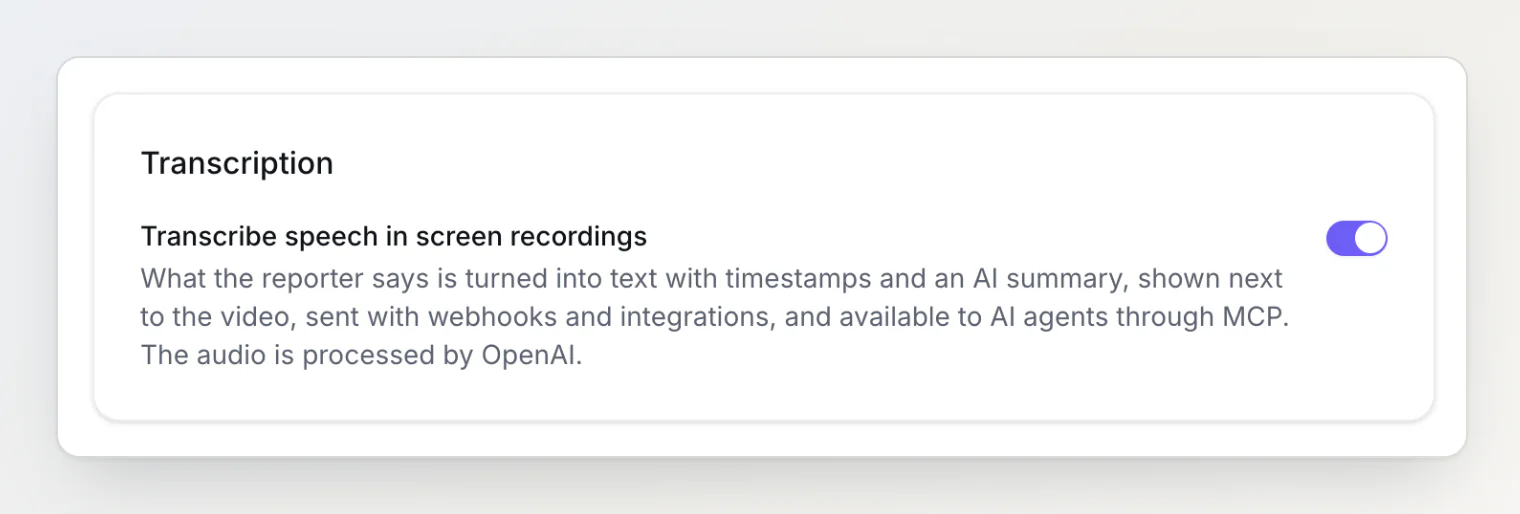
New recordings are not transcribed from then on; existing transcripts stay. With the switch off, any member can still press Transcribe on one recording.
Monthly minutes
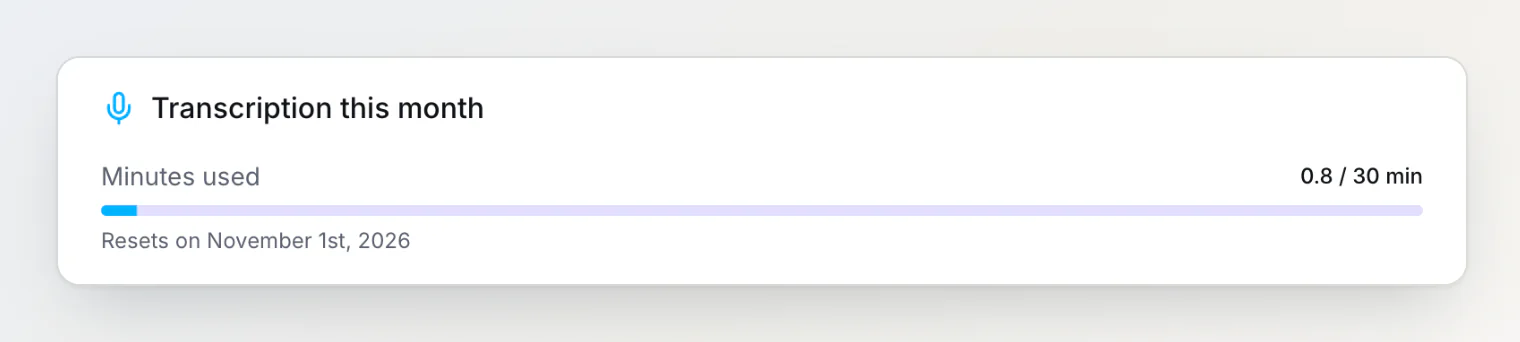
Each transcribed recording counts its full length, silences included, against the project owner's plan, summed across all of the owner's projects. Pressing Transcribe or Try again uses the owner's minutes too, whoever presses it:
Free | Pro | Ultra |
|---|---|---|
30 minutes a month | 600 minutes a month | 3,000 minutes a month |
The minutes reset on the 1st of the month, 00:00 UTC. Each recording is counted once, so Try again on it in the same month doesn't charge it again. A widget recording stops at three minutes, so one recording uses at most three. A recording longer than the minutes left isn't transcribed at all: with one minute left, a two-minute recording gets the "used up" message.
The owner sees the month's use under Transcription this month: avatar menu → Billing. At 80% and 90% of the minutes they get a notification and an email.
Where else the text goes
AI agents: the MCP tool
get_reportreturns the transcript and the summary with the recording, so Claude Code or Cursor reads what the reporter said next to the console and network.Webhooks and integrations:
report.createdwebhooks carrysummaryandtranscript. Slack and Telegram messages get the summary cut to 300 characters, Discord to 150; GitHub Issues, Jira, Asana and Freshdesk tickets get the summary and the transcript, up to 10,000 characters. While a recording is being transcribed, BugDump holds them, checking every 10 seconds for up to 10 minutes; a transcript that takes longer is left out. A transcript made later with Transcribe isn't sent: the report went out already.Not the public portal: portal visitors never see a transcript or a summary.
Privacy
The recording's sound goes to OpenAI for transcription, then the transcript's text goes to OpenAI again for the summary. OpenAI gets the sound, never the video. The sound is everything the recording picked up: the reporter's microphone and, if they shared a tab with its audio, whatever that tab played.
The transcript is stored with the report and deleted with it, whether someone deletes the report or it outlives the plan's retention. Copies already sent to Slack, Jira or a webhook stay there.
If reporters may read out customer data or passwords, switch transcription off for that project: the video keeps its sound, but nothing goes to OpenAI. To record no sound at all, install the widget with Recording method set to DOM (no permission).
When the transcript is wrong
After a long pause the model sometimes mishears quiet speech, and BugDump drops the lines it wasn't sure about rather than show a guess: a quiet recording can come back with fewer lines than were said, or with No speech was detected. Now and then the model writes a line nobody said, such as a YouTube sign-off. A finished transcript can't be run again. The recording keeps every word, so when a line looks odd, click it and listen.
Continue reading
Reading a bug report — what else a report carries next to the recording, and the order to read it in.
Using BugDump with Claude Code (MCP) — connect an agent that reads the transcript next to the console and network.
Sending reports to your own systems with webhooks — the
summaryandtranscriptfields in the payload.