Three tabs sit above a project's tasks: Board, List and Epics. The Tasks entry in the sidebar opens the board. List and Epics are on every plan, Free included.
The list view
The list shows the project's tasks as a table. Its columns are Key, Title, Status, Priority, Assignee, Epic, Labels, Due date, Reports, Upvotes and Created. As the window narrows, Reports, Upvotes and Created hide first, then Epic and Labels. A phone shows only the key, the title and the status.
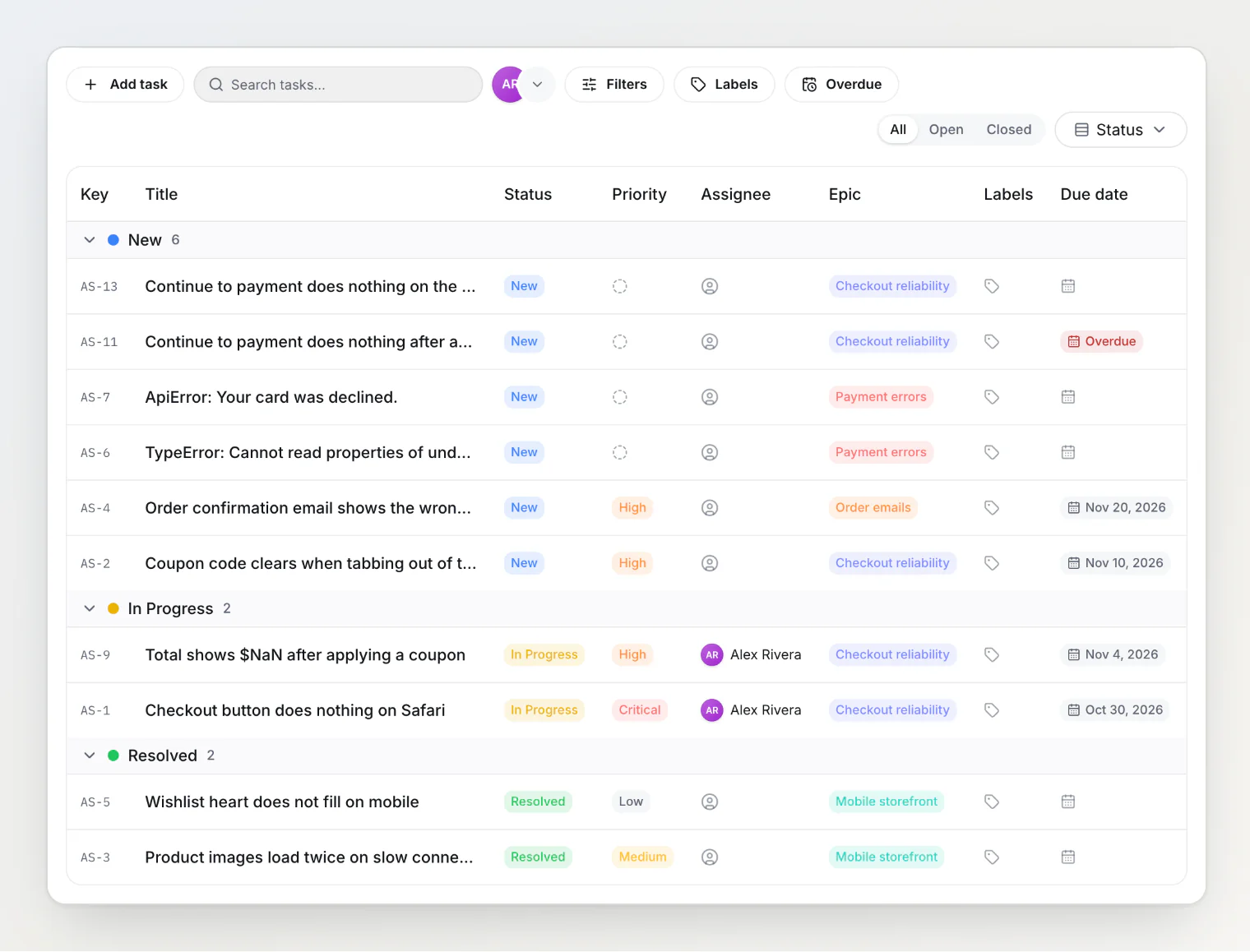
The list has the board's filter bar, and both views keep their filters in the URL, so switching from Board to List keeps what you filtered.
Open, closed or all tasks
The switch next to Group by shows All tasks, only Open ones or only Closed ones. A task is closed when it sits in a closed column, such as Resolved or Closed. The list starts on All.
Sorting
Click a column header to sort by it: Title, Priority, Due date, Reports, Upvotes or Created. A second click reverses the order. Without a sort, the newest task comes first. Tasks with no value in the sorted column go last, in both directions.
Grouping
Group by splits the list into sections: Status, Assignee, Priority, Epic, or, on Pro and Ultra, one of your own properties that holds one value: a Select property, or a Member property with Allow multiple values off. Each section header shows its task count; click it to fold the section away. A folded section stays folded in this browser.
Tasks without a value gather in a section at the end: No status, Unassigned, No priority, No epic or No value. Grouped by assignee, your own section comes first.
Each section loads 50 tasks, and the next 50 when you scroll to its end.
Editing a task from its row
Click a cell to change it without opening the task: status, priority, assignee, epic, labels or due date. The due date picker has a Clear button.
A click anywhere else on the row opens the task in the side panel. J and K step through the tasks of the same section, as they step through a column on the board.
Epics
An epic collects the tasks of one goal, such as a release or a feature, and shows how many are done. A task is in one epic at most.
Creating an epic
Open the Epics tab.
Click New epic.
Type a Name, such as "New checkout". Two epics can't share a name.
Change the Color if you want; one is already picked. Description and Target date are optional.
Click Create epic.
Putting tasks into an epic
In the task's side panel or on its page, set the Epic field.
In the list, click the task's epic cell.
On the board, select several cards with Cmd/Ctrl + click, then pick Epic in the selection bar.
Click Add task and pick the epic in the Create task dialog. From an open epic's list, the new task starts in that epic.
An AI agent connected over MCP calls
set_task_epic.
A card on the board shows its epic's name in the epic's colour. Filters on the board and in the list has an Epic section to show the tasks of chosen epics.
Reading the Epics page
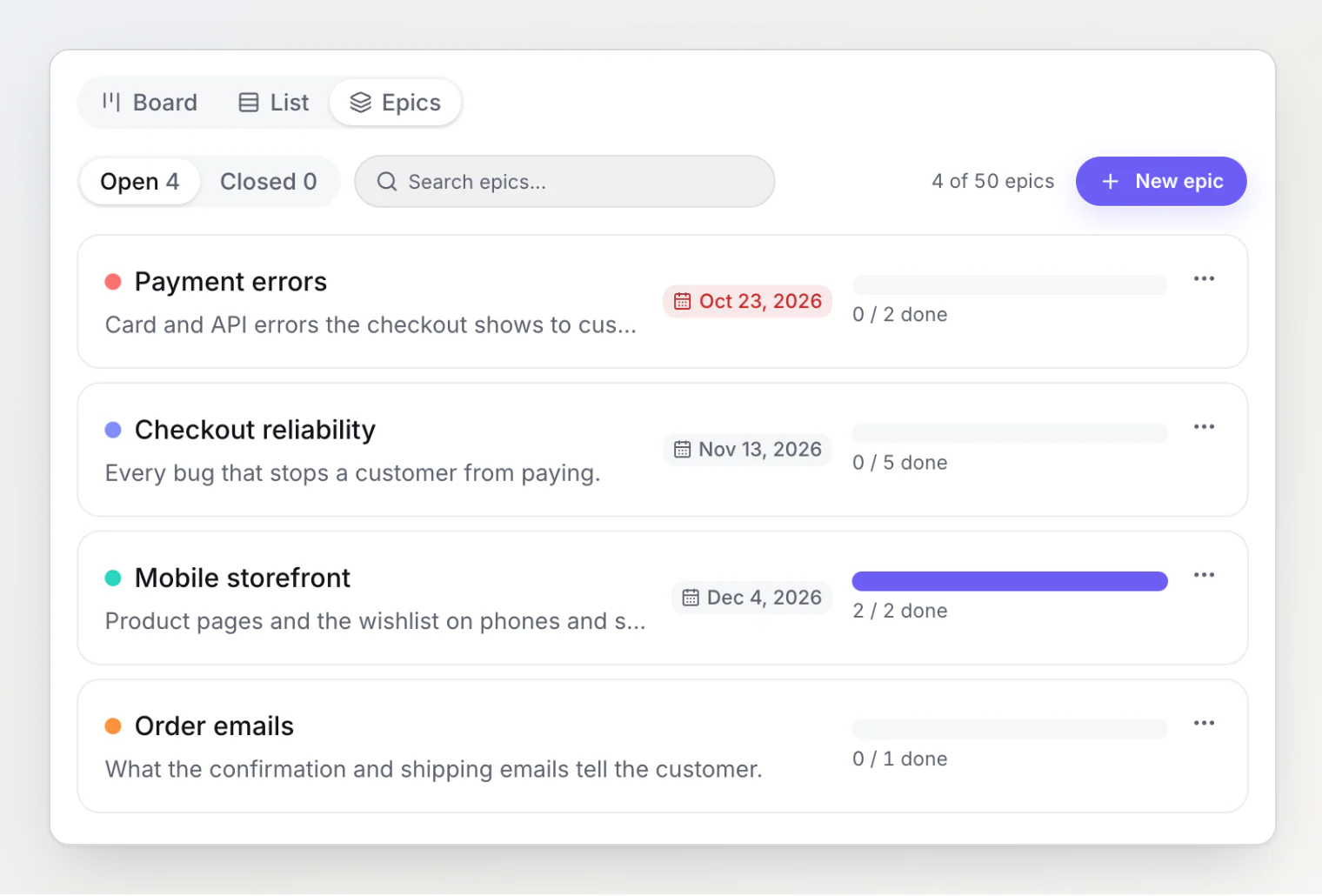
The Open and Closed tabs each show how many epics they hold. Open epics come in order of their target date, the nearest first, and those without a date after them. A target date that has passed turns red.
The bar on each epic counts its tasks and the done ones among them, such as "1 / 3 done". A task counts as done once it is in a closed column.
Search matches the epic's name and description. The page loads 25 epics and the rest as you scroll.
Click an epic to open the list filtered to it and grouped by status. A banner above the list shows the epic's description, target date and progress.
Closing and deleting an epic
The ⋯ menu of an epic has Edit, Close and Delete.
Close keeps the epic on the tasks already in it, but it takes no new ones. A closed epic moves to the Closed tab. Reopen, in the same menu, moves it back to Open, and it takes tasks again.
Delete takes the epic off every task in it and removes it. The tasks stay.
How many epics a project holds
A project holds up to 50 epics on Free, 200 on Pro and 1,000 on Ultra, going by the project owner's plan. Closed epics count too. The Epics page shows the count, such as "12 of 50 epics".
Epics on the public portal
The portal doesn't show epics until you turn them on. In the sidebar, under Settings, open Properties, pick Epic and turn on Show on public portal. Only the project's owner and admins see the switch.
Continue reading
Working with tasks and the board — columns, bulk actions and the side panel the list opens.
Finding a task: search, filters and ⌘K — search by key, the assignee avatars and the other filters the list shares with the board.
Custom properties: adding your own fields to tasks — the fields you can group the list by.