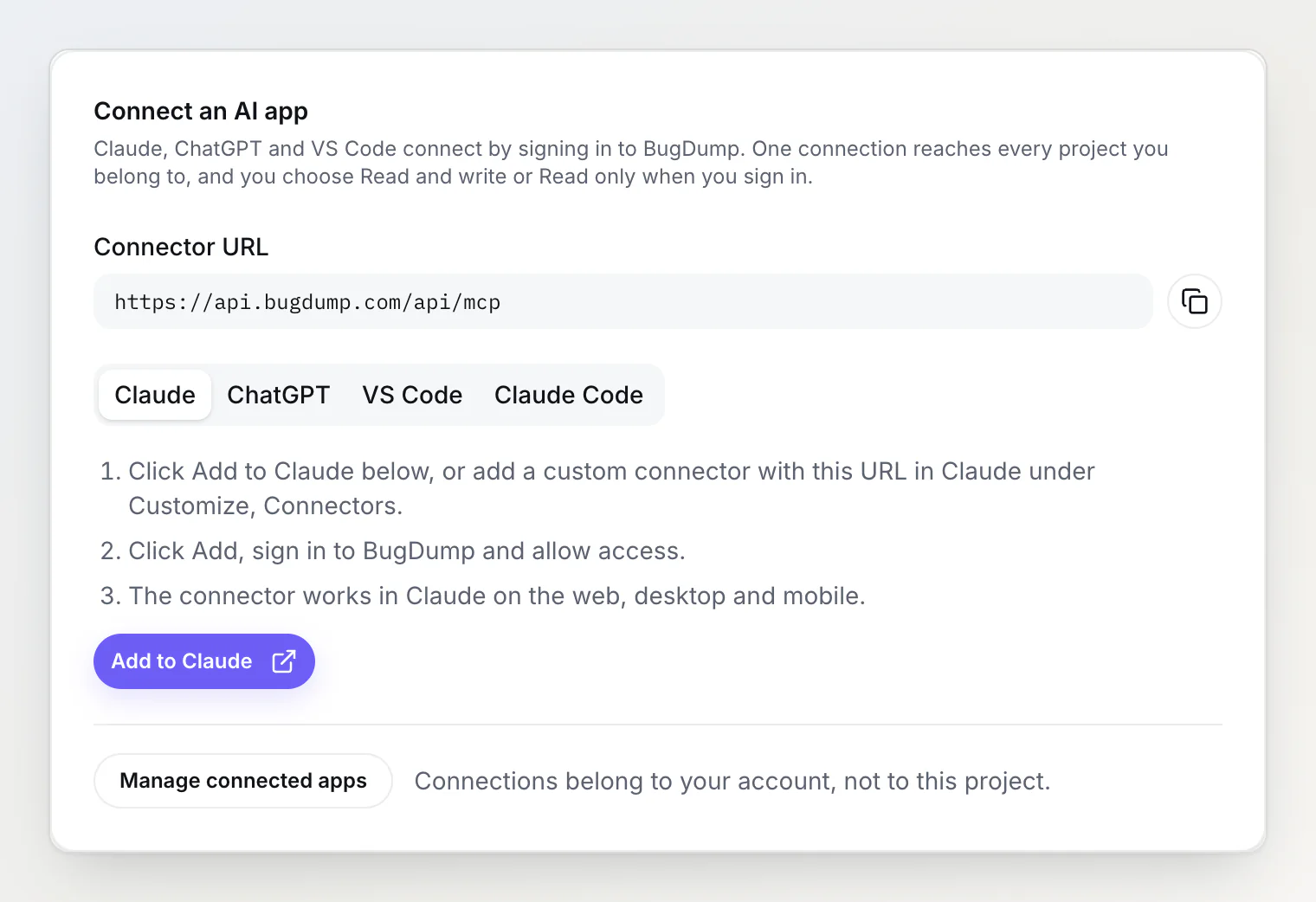
Claude, ChatGPT and VS Code can connect to BugDump's MCP server by signing in. You paste one URL, sign in to BugDump in your browser and choose what the app may do. There's no token to create or store. One connection reaches every project you're a member of.
Using Cursor, or running an agent from a script or a CI job? Those connect with a personal token instead: see Using BugDump with Claude Code (MCP).
Before you start
You need a BugDump account. Guest accounts can't connect apps; the sign-in page asks you to create an account first.
It works on every plan, Free included.
The connector URL is the same for everyone:
https://api.bugdump.com/api/mcpIt's also on every project's MCP server page, under Connect an AI app, with a copy button and the steps for each app.
Claude (web, desktop and mobile)
On a project's MCP server page, click Add to Claude. Claude opens its Add custom connector dialog with the name and URL already filled in. To do it by hand instead, go to Customize → Connectors in Claude, add a custom connector and paste the URL.
Click Add. Claude opens BugDump's sign-in page.
Sign in, choose Read and write or Read only, and click Allow.
Add the connector once on claude.ai and it shows up in the Claude desktop and mobile apps too.
ChatGPT
ChatGPT adds custom MCP servers in developer mode, which needs a paid ChatGPT plan.
In ChatGPT on the web, open Settings → Apps → Advanced settings and turn on developer mode.
Click Create app and paste the connector URL.
Sign in to BugDump and allow access.
VS Code
Run MCP: Add Server from the Command Palette and choose HTTP.
Paste the connector URL and name the server, for example
bugdump.When VS Code asks, sign in to BugDump in your browser and allow access.
Claude Code
Claude Code can sign in as well, so you don't need a token on your own machine:
claude mcp add --transport http bugdump https://api.bugdump.com/api/mcpThen run /mcp in Claude Code, pick bugdump and sign in.
What you're allowing
The consent page names the app that is asking — Claude, ChatGPT, VS Code or Claude Code — and the website that vouches for it: claude.ai for Claude and Claude Code, chatgpt.com for ChatGPT, vscode.dev for VS Code.
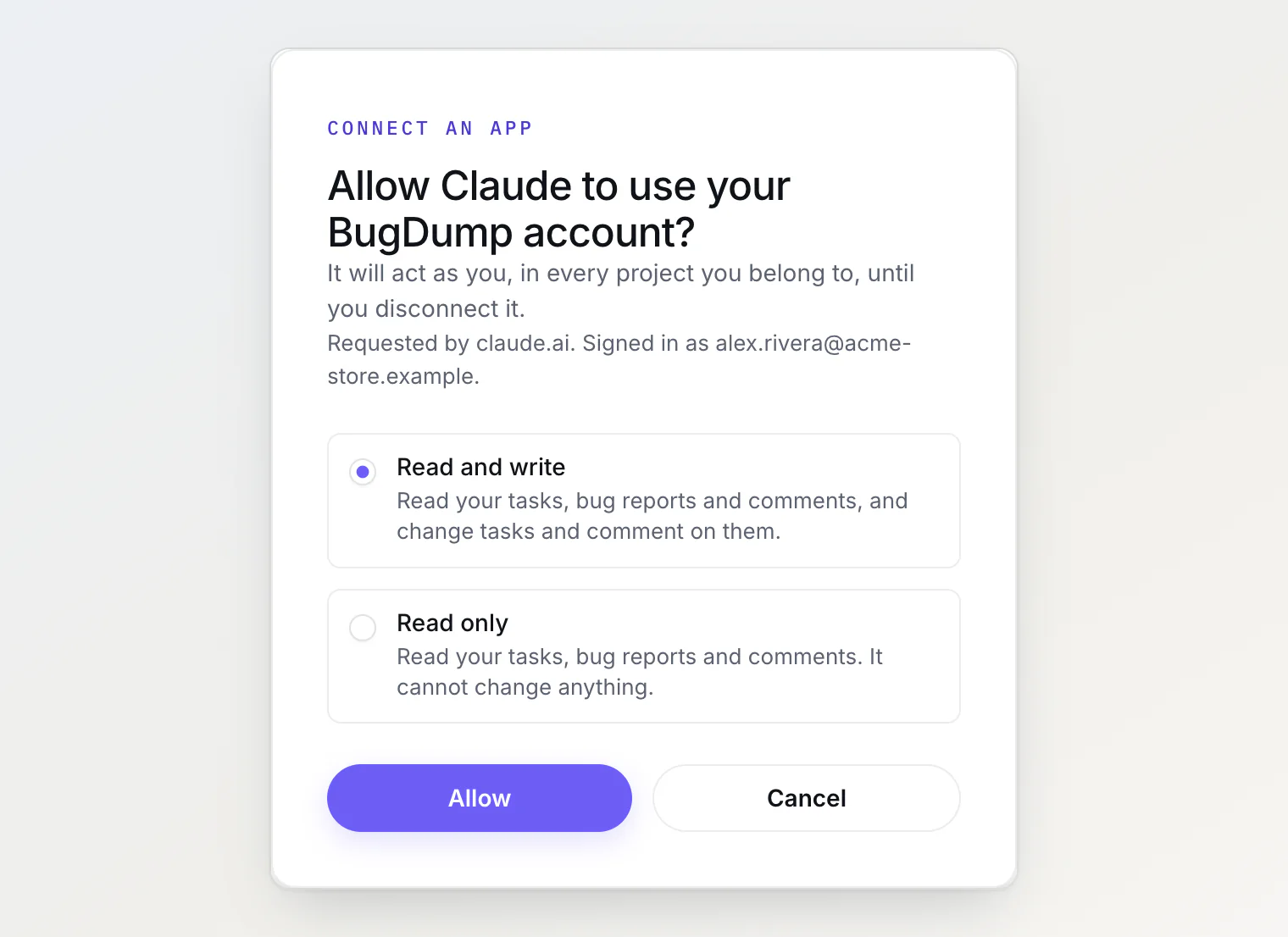
Read and write lets the app read your tasks, bug reports and comments, and also move tasks, comment, set the priority, assign, and change labels, due dates and custom properties.
Read only gives it the read tools and nothing else. It can't change anything.
The app acts as you. It sees what you can see, and every change it makes is recorded under your name with a via MCP label — the same as a change made with a personal token.
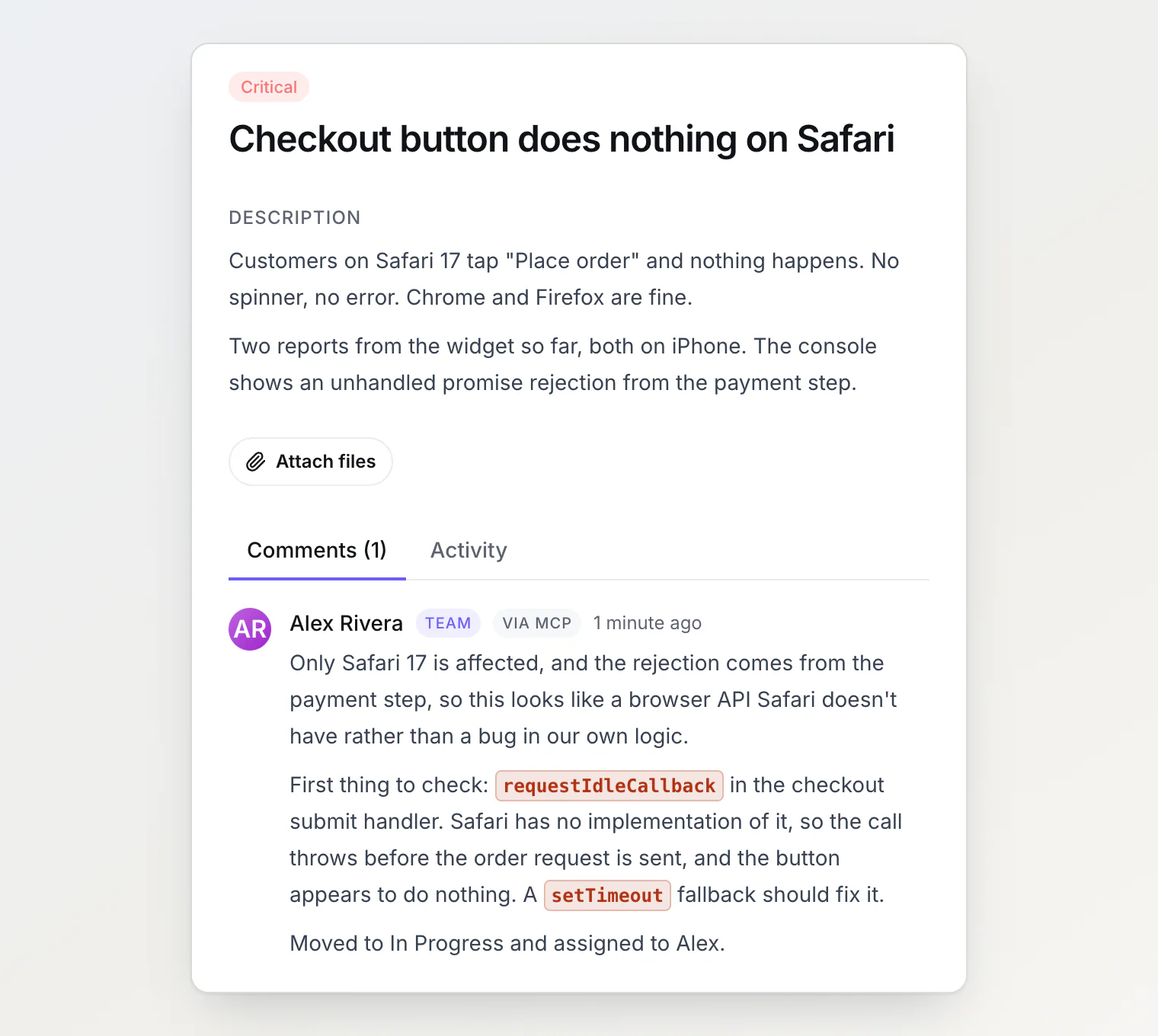
To move an app from Read only to Read and write, or back, disconnect it and connect it again, choosing the other option.
Working across projects
A personal token belongs to one project. A sign-in connection belongs to your account, so it reaches every project you're a member of. Two things follow from that:
list_projectsis an extra tool that lists your projects with their name, slug, key and your role. BugDump tells assistants to call it first.Every other tool takes a
projectargument: the project's slug, such asacme-store. If you're a member of only one project, it can be left out.
You rarely have to think about it. Say which project you mean ("in Acme Store…"), or give a task ref such as AS-1: the assistant matches the key AS against list_projects and passes that project.
If a call leaves project out while you belong to several projects, or names one you're not a member of, BugDump doesn't guess. It answers with the list of your projects, so the assistant can try again with the right one.
Managing connected apps
Every app you've connected is listed in your account settings under Security → Connected apps, with the access you gave it and the day you connected it. Manage connected apps on any project's MCP server page takes you there too.
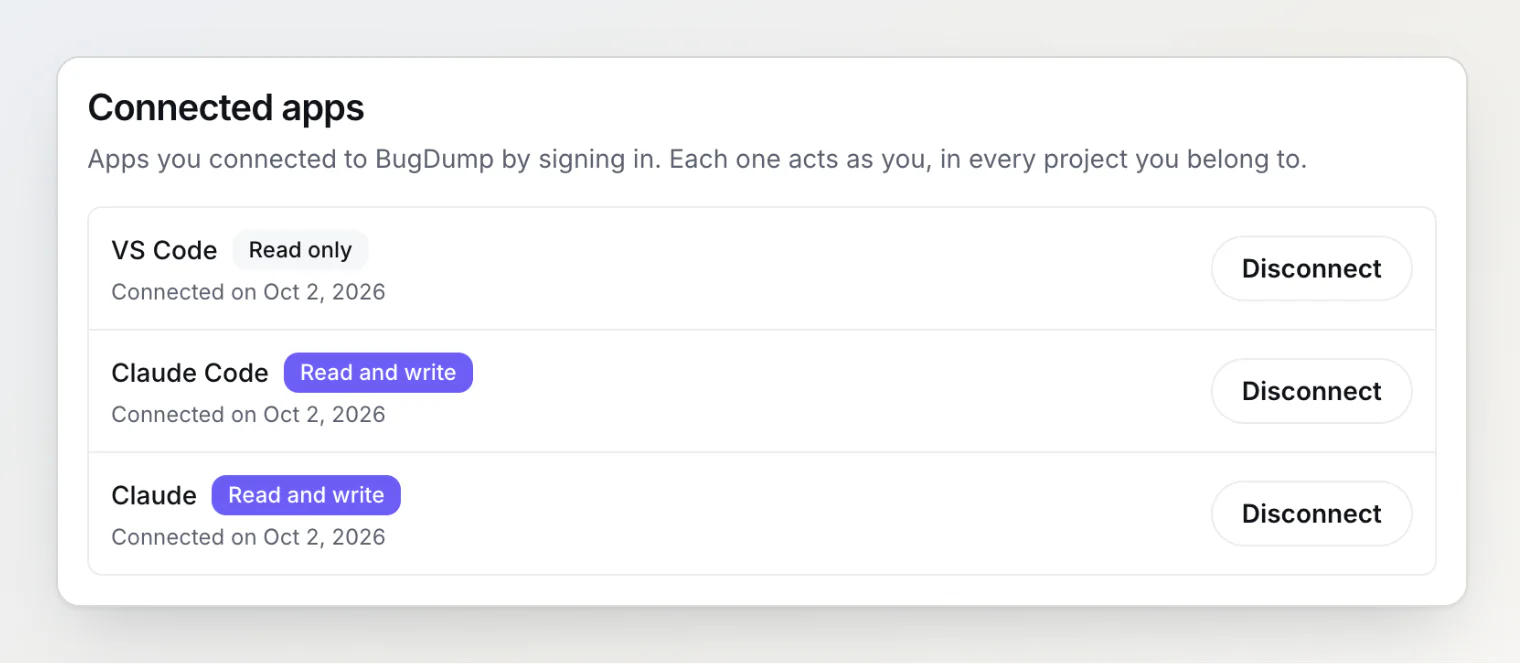
Disconnect cuts the app off straight away: its next request is refused, and it has to ask you to sign in again before it can do anything. Changing or resetting your password disconnects every app.
Connections aren't tied to a project. Leaving a project, or being removed from one, doesn't disconnect your apps; that project simply drops out of what they can reach, on the very next request.
Which apps can connect this way
Signing in works for Claude, Claude Code, ChatGPT and VS Code. BugDump only accepts these known apps, so a look-alike site can't ask for access under Claude's name. Every other MCP client, Cursor included, connects with a personal token.
Troubleshooting
The sign-in page says the link has expired. A sign-in link is valid for ten minutes. Start connecting again from your assistant.
The write tools are missing. You chose Read only when you connected. Disconnect the app and connect it again with Read and write.
MCP_PROJECT_REQUIRED or MCP_PROJECT_NOT_FOUND. The assistant didn't say which project, or used a slug you're not a member of. The error lists your projects, so the assistant can usually retry on its own; if it doesn't, tell it the project's name.
MCP_NO_PROJECTS. Your account isn't a member of any project yet. Create a project or accept an invitation, then try again.
The app stopped working after you changed your password. That's on purpose: a password change or reset disconnects every app. Connect it again.