Until today, connecting an assistant to BugDump meant creating a personal token and pasting it into a config file. That's fine in Claude Code and Cursor. But Claude's apps and ChatGPT have nowhere to paste a token, and VS Code's Add Server flow doesn't ask for one. They expect to sign in, and BugDump couldn't do that.
Now it can. Copy https://api.bugdump.com/api/mcp from any project's MCP server page (or click Add to Claude there), sign in to BugDump when the app asks, choose Read and write or Read only, and you're connected.
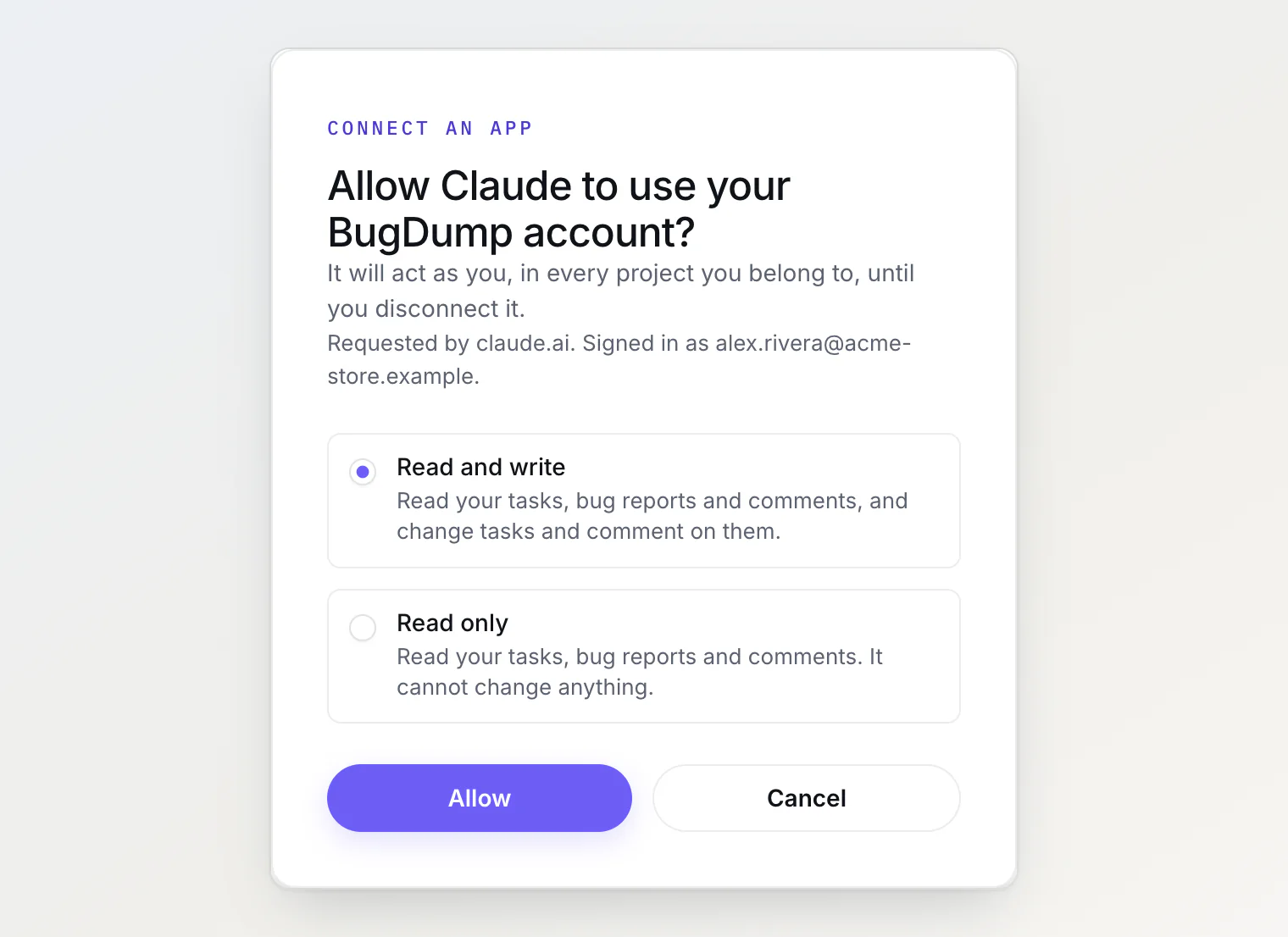
One connection, all your projects. A token belongs to one project; a sign-in connection belongs to you. Your assistant can work in any project you're a member of: tools take a
projectargument, and a newlist_projectstool shows what's available.Same rules as tokens. The app acts as you, sees only what you can see, and every change it makes is labelled via MCP under your name. Pick Read only and the write tools aren't there at all.
Disconnect any time. Every connected app is listed under Security → Connected apps in your account settings. Disconnect stops it on its next request, and changing or resetting your password disconnects them all.
Personal tokens still work. Cursor, scripts and CI jobs keep using personal tokens, now under Personal tokens on the same page.
Setup for each app: Connecting Claude, ChatGPT or VS Code to BugDump.
Also new
Cancel a comment you've started. The comment box on a task now shows a Cancel button once there's something in it. It clears the text, any attached files and the saved draft, without posting.